Android 动画
Android 提供了多种动画框架,从简单的视图动画到强大的属性动画系统,帮助开发者打造流畅的用户体验。
动画类型概览
| 类型 | 说明 | 适用场景 |
|---|---|---|
| View Animation(视图动画) | 补间动画,只改变绘制效果不改变实际属性 | 简单的平移、缩放、旋转、透明度变化 |
| Property Animation(属性动画) | 真正改变对象属性值 | 任意对象的任意属性动画 |
| Drawable Animation(帧动画) | 逐帧播放图片 | 加载动画、简单的序列帧动画 |
| Transition(过渡动画) | 场景切换时的自动动画 | Activity/Fragment 切换、布局变化 |
| MotionLayout | 基于 ConstraintLayout 的动画引擎 | 复杂的手势驱动动画 |
一、View Animation(视图动画)
视图动画是 Android 最早的动画框架,通过对 View 的绘制进行变换来实现动画效果。
注意:视图动画只改变 View 的绘制位置,不改变实际属性(如点击区域不会跟随移动)。
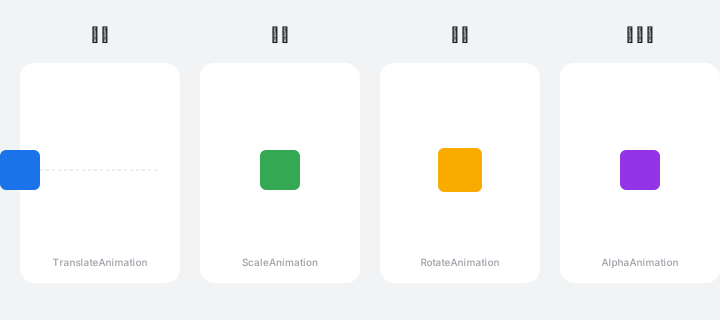
四种基本动画
kotlin
// 1. 平移动画
val translate = TranslateAnimation(0f, 200f, 0f, 0f).apply {
    duration = 500
    fillAfter = true // 动画结束后保持最终状态
}
view.startAnimation(translate)

// 2. 缩放动画
val scale = ScaleAnimation(
    1f, 1.5f,  // X 轴从 1 倍放大到 1.5 倍
    1f, 1.5f,  // Y 轴从 1 倍放大到 1.5 倍
    Animation.RELATIVE_TO_SELF, 0.5f,  // 缩放中心 X
    Animation.RELATIVE_TO_SELF, 0.5f   // 缩放中心 Y
).apply {
    duration = 500
}
view.startAnimation(scale)

// 3. 旋转动画
val rotate = RotateAnimation(
    0f, 360f,
    Animation.RELATIVE_TO_SELF, 0.5f,
    Animation.RELATIVE_TO_SELF, 0.5f
).apply {
    duration = 1000
}
view.startAnimation(rotate)

// 4. 透明度动画
val alpha = AlphaAnimation(1f, 0f).apply {
    duration = 500
}
view.startAnimation(alpha)
组合动画
kotlin
val animSet = AnimationSet(true).apply {
    addAnimation(TranslateAnimation(0f, 200f, 0f, 0f).apply { duration = 500 })
    addAnimation(AlphaAnimation(1f, 0.5f).apply { duration = 500 })
}
view.startAnimation(animSet)
XML 定义动画
在 res/anim/ 目录下创建动画文件:
xml
<!-- res/anim/slide_in.xml -->
<set xmlns:android="http://schemas.android.com/apk/res/android"
    android:interpolator="@android:anim/accelerate_decelerate_interpolator">
    <translate
        android:fromXDelta="-100%"
        android:toXDelta="0%"
        android:duration="300" />
    <alpha
        android:fromAlpha="0"
        android:toAlpha="1"
        android:duration="300" />
</set>
kotlin
val anim = AnimationUtils.loadAnimation(context, R.anim.slide_in)
view.startAnimation(anim)
二、Property Animation(属性动画)
属性动画是 Android 3.0 引入的动画框架,真正改变对象的属性值,是目前最推荐的动画方式。
ObjectAnimator
kotlin
// 单个属性动画
ObjectAnimator.ofFloat(view, "translationX", 0f, 200f).apply {
    duration = 500
    start()
}

// 常用动画属性
ObjectAnimator.ofFloat(view, "alpha", 1f, 0f)           // 透明度
ObjectAnimator.ofFloat(view, "scaleX", 1f, 2f)          // X 轴缩放
ObjectAnimator.ofFloat(view, "scaleY", 1f, 2f)          // Y 轴缩放
ObjectAnimator.ofFloat(view, "rotation", 0f, 360f)      // 旋转
ObjectAnimator.ofFloat(view, "translationY", 0f, 100f)  // Y 轴平移
ValueAnimator
kotlin
// 自定义值变化动画
ValueAnimator.ofFloat(0f, 1f).apply {
    duration = 1000
    addUpdateListener { animator ->
        val value = animator.animatedValue as Float
        view.alpha = value
        view.scaleX = 1 + value * 0.5f
        view.scaleY = 1 + value * 0.5f
    }
    start()
}

// 颜色渐变
ValueAnimator.ofArgb(Color.RED, Color.BLUE).apply {
    duration = 1000
    addUpdateListener { animator ->
        view.setBackgroundColor(animator.animatedValue as Int)
    }
    start()
}
AnimatorSet(组合动画)
kotlin
val moveX = ObjectAnimator.ofFloat(view, "translationX", 0f, 200f)
val moveY = ObjectAnimator.ofFloat(view, "translationY", 0f, 200f)
val fade = ObjectAnimator.ofFloat(view, "alpha", 1f, 0.5f)

AnimatorSet().apply {
    // 同时播放
    playTogether(moveX, moveY, fade)

    // 或者顺序播放
    // playSequentially(moveX, moveY, fade)

    // 或者使用 Builder 链式调用
    // play(moveX).with(fade).before(moveY)

    duration = 500
    start()
}
ViewPropertyAnimator(推荐方式)
kotlin
// 最简洁的动画 API
view.animate()
    .translationX(200f)
    .alpha(0.5f)
    .scaleX(1.5f)
    .scaleY(1.5f)
    .rotation(360f)
    .setDuration(500)
    .setInterpolator(AccelerateDecelerateInterpolator())
    .withStartAction { /* 动画开始时的回调 */ }
    .withEndAction { /* 动画结束时的回调 */ }
    .start()
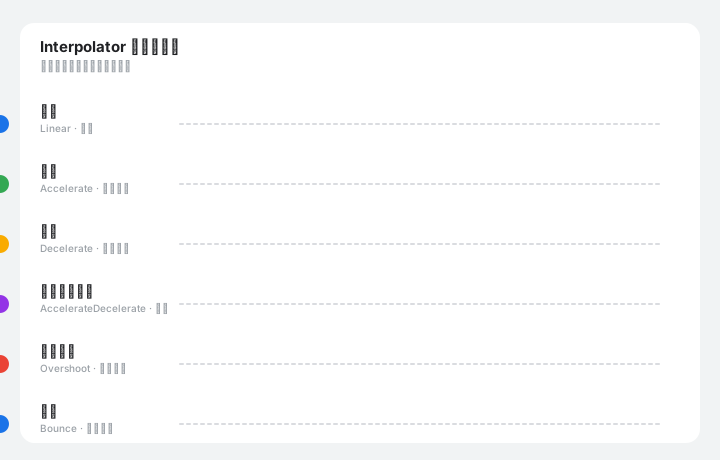
插值器(Interpolator)
插值器控制动画的变化速率:
kotlin
view.animate()
    .translationX(200f)
    .setInterpolator(LinearInterpolator())                    // 匀速
    // .setInterpolator(AccelerateInterpolator())             // 加速
    // .setInterpolator(DecelerateInterpolator())             // 减速
    // .setInterpolator(AccelerateDecelerateInterpolator())   // 先加速后减速
    // .setInterpolator(OvershootInterpolator())              // 超出后回弹
    // .setInterpolator(BounceInterpolator())                 // 弹跳效果
    // .setInterpolator(AnticipateInterpolator())             // 先回拉再前进
    .start()
动画监听
kotlin
val animator = ObjectAnimator.ofFloat(view, "translationX", 0f, 200f)
animator.addListener(object : Animator.AnimatorListener {
    override fun onAnimationStart(animation: Animator) { /* 开始 */ }
    override fun onAnimationEnd(animation: Animator) { /* 结束 */ }
    override fun onAnimationCancel(animation: Animator) { /* 取消 */ }
    override fun onAnimationRepeat(animation: Animator) { /* 重复 */ }
})

// 简化写法,只监听结束
animator.doOnEnd {
    // 动画结束后执行
}
animator.start()
三、Drawable Animation(帧动画)
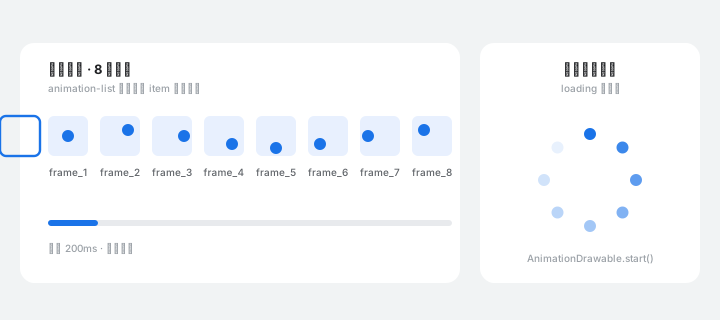
帧动画通过逐帧播放图片序列来实现动画效果。
XML 定义
xml
<!-- res/drawable/loading_animation.xml -->
<animation-list xmlns:android="http://schemas.android.com/apk/res/android"
    android:oneshot="false">
    <item android:drawable="@drawable/frame_1" android:duration="100" />
    <item android:drawable="@drawable/frame_2" android:duration="100" />
    <item android:drawable="@drawable/frame_3" android:duration="100" />
    <item android:drawable="@drawable/frame_4" android:duration="100" />
</animation-list>
代码使用
kotlin
imageView.setBackgroundResource(R.drawable.loading_animation)
val animation = imageView.background as AnimationDrawable
animation.start()

// 停止
animation.stop()
四、Transition(过渡动画)
Activity 转场动画
kotlin
// 启动 Activity 时添加转场动画
startActivity(intent)
overridePendingTransition(R.anim.slide_in_right, R.anim.slide_out_left)

// 关闭 Activity 时添加转场动画
finish()
overridePendingTransition(R.anim.slide_in_left, R.anim.slide_out_right)
共享元素动画
kotlin
// Activity A 中启动带共享元素的 Activity
val options = ActivityOptionsCompat.makeSceneTransitionAnimation(
    this,
    imageView,          // 共享的 View
    "shared_image"      // 转场名称(需要与目标 Activity 中一致)
)
startActivity(intent, options.toBundle())

// Activity B 的布局中设置 transitionName
// android:transitionName="shared_image"
LayoutTransition(布局动画)
kotlin
// 当 ViewGroup 中添加或移除子 View 时自动执行动画
val layoutTransition = LayoutTransition().apply {
    setDuration(300)
    enableTransitionType(LayoutTransition.CHANGING)
}
viewGroup.layoutTransition = layoutTransition
五、实用动画示例
按钮点击缩放效果
kotlin
fun View.addClickScale() {
    setOnTouchListener { v, event ->
        when (event.action) {
            MotionEvent.ACTION_DOWN -> {
                v.animate().scaleX(0.95f).scaleY(0.95f).setDuration(100).start()
            }
            MotionEvent.ACTION_UP, MotionEvent.ACTION_CANCEL -> {
                v.animate().scaleX(1f).scaleY(1f).setDuration(100).start()
            }
        }
        false
    }
}
RecyclerView Item 入场动画
kotlin
class AnimatedAdapter : RecyclerView.Adapter<ViewHolder>() {
    private var lastPosition = -1

    override fun onBindViewHolder(holder: ViewHolder, position: Int) {
        // 仅对新出现的 Item 执行动画
        if (position > lastPosition) {
            holder.itemView.alpha = 0f
            holder.itemView.translationY = 100f
            holder.itemView.animate()
                .alpha(1f)
                .translationY(0f)
                .setDuration(300)
                .setStartDelay((position * 50).toLong())
                .start()
            lastPosition = position
        }
    }
}
呼吸灯闪烁效果
kotlin
fun View.startBreathingAnimation() {
    ObjectAnimator.ofFloat(this, "alpha", 1f, 0.3f, 1f).apply {
        duration = 2000
        repeatCount = ObjectAnimator.INFINITE
        interpolator = AccelerateDecelerateInterpolator()
        start()
    }
}
六、动画性能优化
- 优先使用硬件加速属性:
translationX/Y、scaleX/Y、rotation、alpha这些属性不会触发重新布局 - 避免在动画中频繁创建对象:提前创建好动画对象,复用而非重新创建
- 及时取消动画:在
onPause()或onDestroyView()中取消正在执行的动画 - 避免过度绘制:动画元素设置合理的背景,减少不必要的层级
kotlin
// 在生命周期中管理动画
override fun onDestroyView() {
    super.onDestroyView()
    animator?.cancel()
    view?.animate()?.cancel()
}